Writing & mentions
Card descriptions and comments use the same rich-text editor. You type normally and it formats as you go; behind the scenes it stores clean Markdown, so your text stays portable.
Formatting
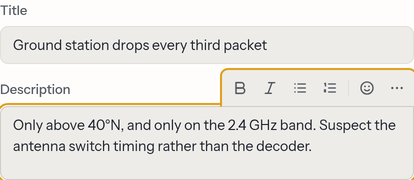
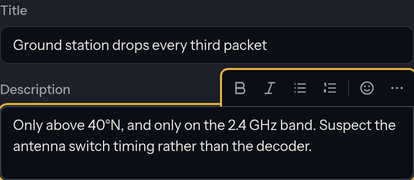
When you click into the editor, a small formatting toolbar rises above it:
- Bold, italic, bullet list, numbered list
- More (…) opens the rest: Heading 1/2/3,
strikethrough,inline code, code block, and quote.
Buttons highlight to show what's applied at the cursor. You can also just type
Markdown (**bold**, - item, > quote, `code`) and it renders live.
Pasting Markdown works too: paste a chunk of Markdown (say, from a README
or an AI chat) and its headings, lists, links, and code blocks arrive as real
formatting, not literal ## characters. Prefer the raw text? Paste with
Ctrl/⌘ + Shift + V, or press Ctrl/⌘ + Z once to undo the conversion.
Copying out of the editor gives you Markdown back, so text round-trips
cleanly.
Keyboard shortcuts
Use ⌘ on macOS or Ctrl elsewhere:
| Shortcut | Action |
|---|---|
| ⌘/Ctrl + B | Bold |
| ⌘/Ctrl + I | Italic |
| ⌘/Ctrl + K | Add/edit a link on the selected text |
| ⌘/Ctrl + Shift + A | Attach a file to the card |
| ⌘/Ctrl + Enter | Post the comment you're writing |
| ⌘/Ctrl + / | Reference a chat message — search, pick, and a pill linking to it lands at your cursor |
| Esc | Cancel editing: the description (and title) revert to their last-saved state, a comment draft is kept; press again to close the card (unless it's pinned) |
(For safety, links are limited to http, https, and mailto addresses.)
Mentioning people — @
Type @ at the start of a word to bring up a list of project members.
Keep typing to filter, then pick one (arrow keys + Enter, or click). The
person's name appears as a chip in your text.
Mentioned people get notified. When you post a comment or save a description that newly mentions someone, ogma drops a notification into their bell (top-right) — and, if the server has email set up, emails them a link too. You won't notify anyone by re-saving unchanged text, and you're never notified about your own mentions.
Referencing cards — #
Type # at the start of a word to search the project's other cards by
title or number. Pick one to drop in a chip showing the card's number
(#12). Clicking a #card chip opens that card, and hovering it shows
the card's title.
Card links stay correct over time: ogma stores the card's id, not its number or name, so the chip's hover title tracks a renamed card everywhere it appears.
Notifications
The bell in the top-right is your inbox — one inbox shared across every ogma app, so items from chat show up here too. It shows a count when something needs your attention. From projects it collects:
- Mentions — someone
@mentioned you in a card or comment. - Assignments — someone assigned a card to you.
- Comments — someone commented on a card you're assigned to.
- Added to a project — someone added or invited you to a project.
Open the bell to see recent items: card items link straight to the card, project items to its board, and items from other apps into that app. Clicking one marks it read; Mark all read clears the count. Repeated activity on the same card is grouped into a single entry, so a busy card won't flood your inbox, and the bell checks for new items about once a minute. Only mentions are also emailed — everything else is in-app only.