Comments & attachments
Comments
Every card has a comment thread in its details panel for discussion.
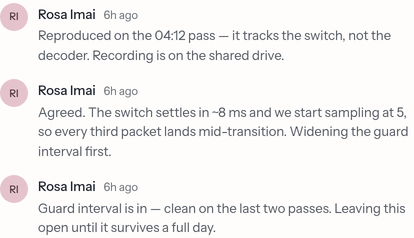
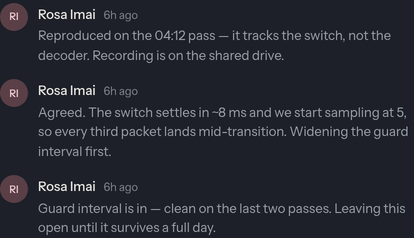
- Write in the editor at the bottom of the thread (same
formatting,
@mentions, and#links as descriptions) and choose Comment — or press ⌘/Ctrl + Enter. - Comments render your Markdown, so bold, lists,
code, quotes, and links all display properly. - Edit a comment with the pencil that appears when you hover one of your own — the row turns into an inline editor (Save / Cancel). Edited comments carry a small (edited) note next to the timestamp. Only the author can edit a comment; there's no time limit.
- Delete a comment with the ✕ that appears when you hover it. You can always delete your own; project Owners and Admins can delete anyone's.
New comments from other people arrive on their own while you have the card open. If you're part-way through editing one of yours when someone else's change lands, your draft is kept and the dialog tells you rather than replacing the thread underneath you — see Watching a card change.
Commenting needs the Member role or higher.
Attachments
You can attach files in two places: on the card and on a comment.
Attach to a card
In the card panel's Attachments area:
- Drag files onto it, or press ⌘/Ctrl + Shift + A while writing in the editor, or use + Add to pick files (any type) or send them from your phone.
- Each file can be up to 10 MB.
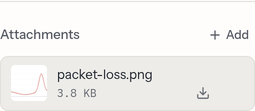
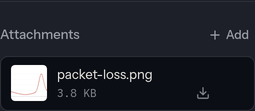
Images show a thumbnail; other files show a file icon. Remove a file with its delete button.
Every upload is scanned before it's kept. Programs and installers (.exe,
.msi, .dmg, .apk, and the like) are always refused, scripts (.sh,
.ps1, .js) are refused by default, and so is anything that trips the virus
scanner — you'll see a short message explaining why, and nothing is stored. If
a scan can't run at all, the upload is refused rather than kept unchecked.
Which script types are allowed is an operator setting, so your workspace may
differ; programs and installers are refused everywhere and can't be switched
on. To share something that's blocked, put it in an archive — archives aren't
unpacked or inspected.
Chat applies the same rules to its uploads.
Attach to a comment
While composing, use the paperclip — it offers the file picker or your phone; files stage as chips and are saved with the comment when you post it.
Drag a file onto a posted comment to attach it there too; it appears as a reference under that comment. Handy for replying with a screenshot or a document tied to a specific point in the discussion.
Previewing & downloading
Click an attachment's name or thumbnail to preview it in place — images, PDFs, and Markdown open in a dialog. Anything else downloads, and the download icon at the right of a row always downloads rather than previewing. Files are never served in a way that lets them run as a page in the app.
Uploading and deleting attachments needs the Member role or higher; Viewers can download.