Projects & boards
A project is a board. A board is a row of columns, and each column holds cards — the individual pieces of work.
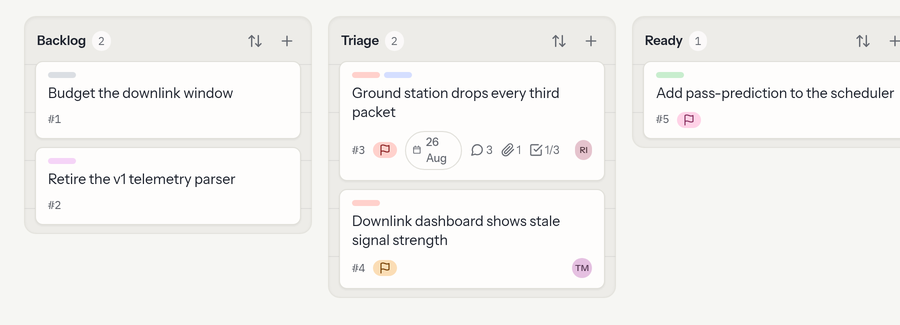
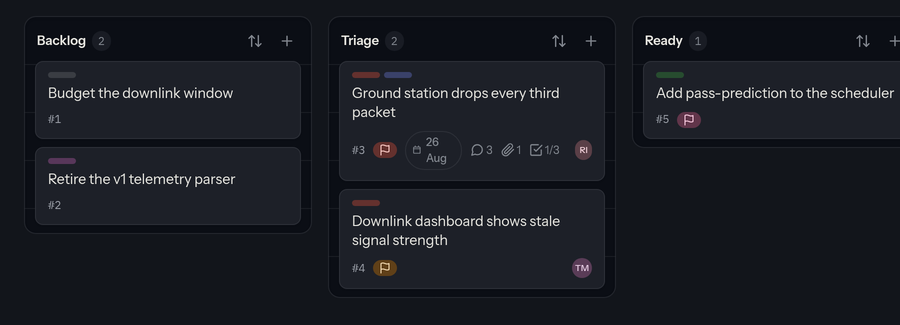
New projects start with those six columns and a starter set of labels and priorities, all of which you can rename, reorder, or replace.
Columns
- Rename a column by clicking its name on the board and typing — or in Settings → Columns, where the same inline rename now sits beside each column, so the page you manage columns from can also do the commonest edit.
- Add, reorder, or delete columns in the project's Settings → Columns (the gear icon in the board header):
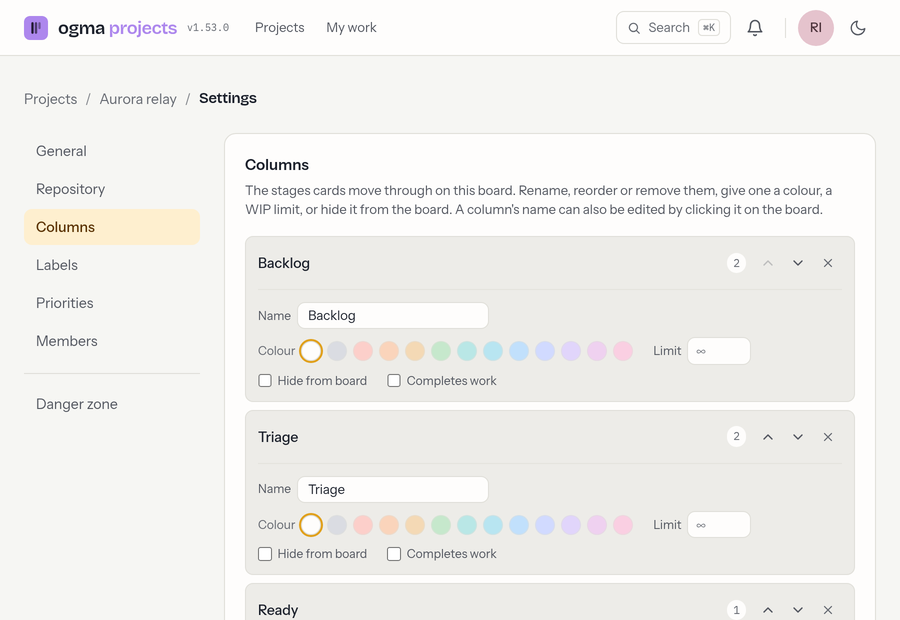
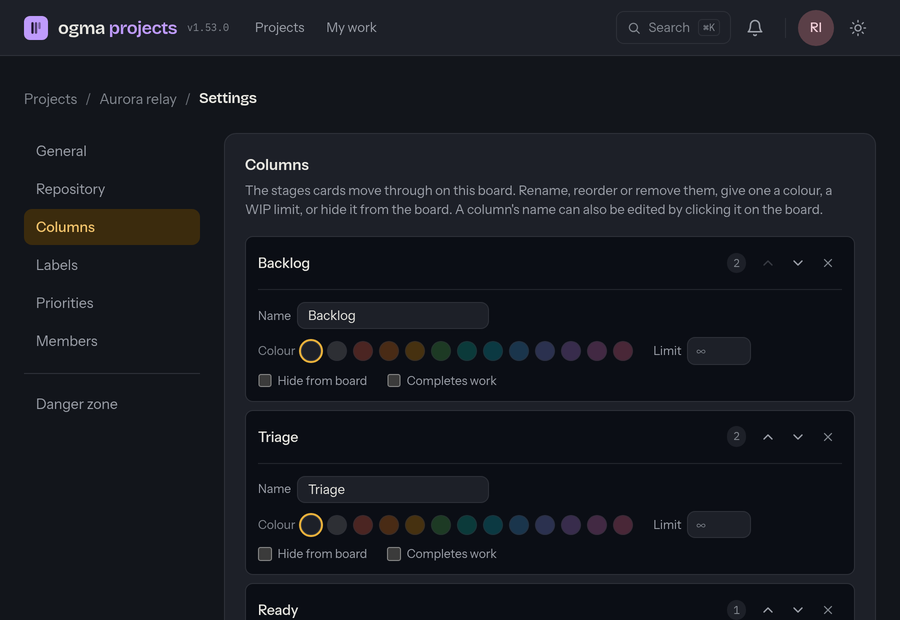
Reorder with the arrows; deleting a column removes the cards in it, so move anything you want to keep first. A column can also be given a colour, a card limit, or be hidden from the board, and marked as completes work so cards in it count as done.
Renaming, adding, reordering, and deleting columns needs the Member role or higher.
Gated columns
Tick Gate entry on a column and the server refuses to move a card into it — by drag, by Move, or through the API — until every entry criterion has been acknowledged on that card. Once gated, the column shows its Entry criteria: type what must be true to enter it, tick Needs evidence if acknowledging should require a commit sha or a link, and Add; the ✕ beside a criterion removes it (and any acknowledgements of it). A column with no criteria of its own falls back to the Board default gate at the bottom of the section, which is edited the same way; a card's own criteria (set through the API) replace both. A gated column with no criteria anywhere accepts every move. Cards are acknowledged from their dialog — see Entry criteria. Gating a column and editing criteria needs the Member role or higher.
Cards
- Add a card with the + button in a column's header. Type a title and confirm; the card is added to the bottom of the column.
- Open a card by clicking it — this opens its details panel (see Card details).
- Move a card by dragging it within a column or to another column. Prefer the keyboard? Open the card and use the Move controls at the bottom of the panel (pick a column and Top/Bottom).
A card face carries everything you need to triage without opening it:
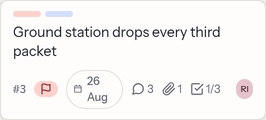
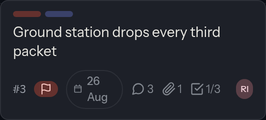
#3 is the card's per-board handle — the same number the dialog header shows
and the one people say out loud. Badges appear only when they apply, so a bare
card is a card with nothing set on it.
Boards that agents work on show a little more: an agent chip on cards whose owner type is agent ("Agent work — claimable by the fleet"), a work-phase pill while a card is claimed (analyzing, planning, implementing, recording, waiting or blocked — red when blocked), rot / silent badges when the board's Flag stale work setting has caught a claimed card going quiet (nothing about the card has been changed — hover the badge for why), and, at the right, ringed avatars for whoever is looking at the card right now, next to the assignee's initials. See Owner type & shepherds.
Sorting a column
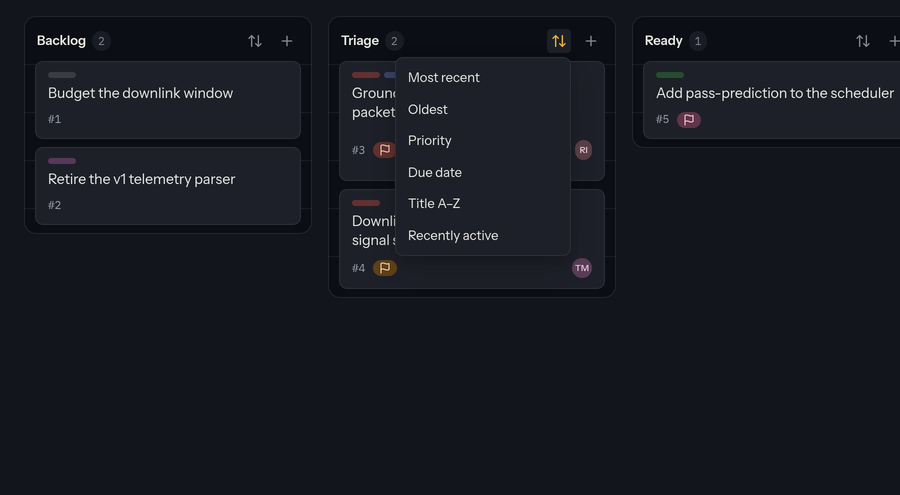
The sort icon in a column's header (next to +) reorders that column once, for everyone:
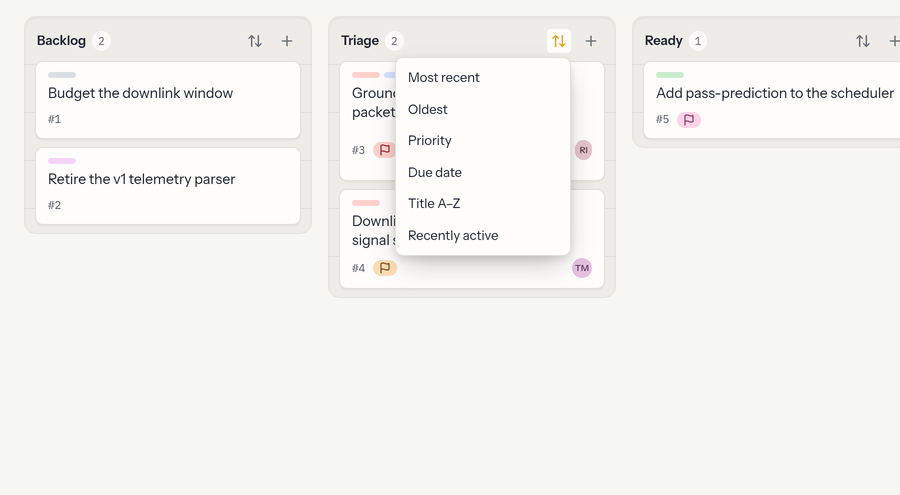
- Most recent / Oldest — by when cards were created.
- Priority — follows the ladder in Settings → Priorities; cards without a priority sink to the bottom.
- Due date — soonest first; undated cards sink.
- Title A–Z — alphabetical.
- Recently active — the most recently edited or commented-on card first.
Sorting is a one-shot reorder, not a standing view: it rewrites the column's order exactly as if someone had dragged the cards, and dragging remains the source of truth afterwards. Ties keep their existing relative order (sorting by priority never reshuffles cards that share one). Sorting needs the Member role or higher.
Finding cards — search & filter
A toolbar above the board filters what you see, instantly and without a reload:
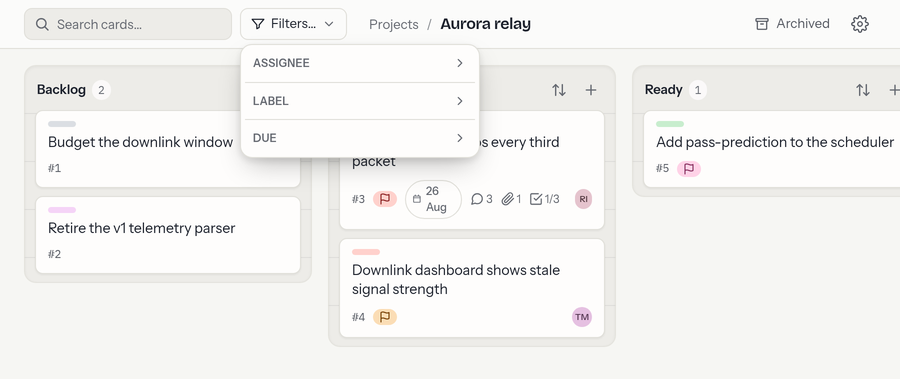
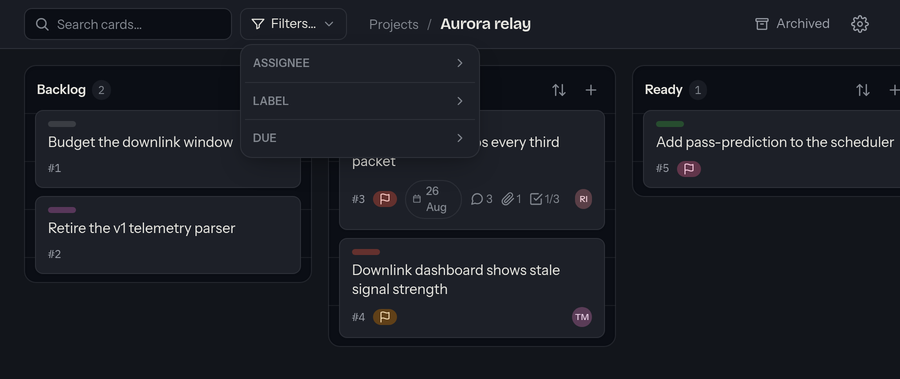
- Search — match card titles, ids, and descriptions. Press
/anywhere on the board to jump straight to the search box. - Assignee — show only cards assigned to particular people (or Unassigned).
- Label — show only cards carrying the labels you pick.
- Overdue / Due soon — narrow to cards that need attention.
Filters combine, and a counter shows how many cards match. Clear resets everything. Filtering only changes what you see — it doesn't affect anyone else's board.
Live updates
Boards update in real time. When a teammate adds a card, moves one, comments, changes a label, due date, assignee, priority, checklist, or description, or attaches a file, you see it appear on your board and in any card panel you have open — no refresh needed.
Nothing you're working on is overwritten. A card panel is careful about it in a way worth knowing if you edit the same cards as other people: text you've written is never replaced, controls you had open say when they changed, and a move is always reported. See Watching a card change.
Who's viewing
Those avatars are the other people who have this board open right now — you're never shown to yourself, which is why the stack is empty when you're alone. Hover or focus it to see everyone laid out with names, and click an avatar to open a direct message with that person in chat: inside the workspace the Chat tab takes you straight to the DM, and in a standalone tab a chat window opens (reused on later clicks).
Someone appears when they open the board and fades out shortly after their last tab on it closes. Only the board's own viewers can see it, and it never shows anyone who couldn't see the board anyway.
Agents get their own strip, between the board header and the columns: one
chip per agent on the board with its name, its pool role, and what it's
doing right now (idle, inspecting #12, assigned #12 · implementing,
…) — or No agents on this board right now. when none is around.
Linking a git repository
Two flavours — the hub binding lives under project Settings → Repository, the plain URL under General:
Bind a workspace repository (the ogma-repos hub). Pick one of your hub repositories from the dropdown and the board starts listening to it: commits whose message mentions a card id (see Card details) become comments on that card, pull requests on GitHub-connected repositories do the same via their title/description, and every card dialog gains a Create branch button for self-hosted repositories. Binding needs board Admin and only offers repositories you're a member of on the hub — and it grants no repository access in either direction.
Or just paste a URL. A project can instead point at any repository (GitHub, GitLab, SourceHut, Codeberg, Bitbucket, …) by pasting its URL into the Repository field under General. ogma detects the provider from the address and shows its badge on the project tile and header. This is a label/link only — ogma doesn't read or write your repository.
Project settings
Open Settings (gear icon) for a master/detail view with a section list on
the left: General (name, description, repository URL, and the agent
settings below), Repository (bind a workspace repository — see
Linking a git repository), Columns,
Labels, Priorities, Members, Pool (see
Worker pool), Calendar, and — for owners — the Danger
zone where the project can be deleted. Each section deep-links (the address
bar carries #labels, #priorities, …), so you can bookmark or share a
specific section. Editing settings needs Admin (columns, labels, and
priorities need Member); deleting a project is Owner-only.
General also carries two agent settings. Agent WIP cap is how many unfinished cards one agent may hold on this board at once (blank for no cap). Flag stale work switches on the staleness detectors: a claimed card with no commit, pull request or vouched evidence for Rotting after N days gets a rot badge, one its holder hasn't touched for Silent after N hours gets silent, and a Digest channel id additionally posts a daily digest to that chat channel (leave it blank to badge only). They only ever report — no card is moved, reassigned or closed by them.
Worker pool
Settings → Pool lists the agents the board owns: they claim agent cards, write findings on them, and show up live on the board strip. Add worker with a Name, a Role (Implement, Review or Explore) and — once the board has labels — a Claim label: Any agent card, or only cards carrying the label you pick. Each worker's row offers Stop (or Start) and Remove. Workers are billed to whoever adds them. Managing the pool needs the Admin role.
Calendar feed
Settings → Calendar mints a read-only .ics URL for the board. Paste it
into Google Calendar ("From URL"), Apple Calendar ("New Calendar
Subscription"), or anything else that reads iCalendar, and cards with a due
date show up as all-day events. Finished and archived cards drop out of the
feed, which removes their events from the calendar too.
The URL is the credential. A calendar app can't sign in, so anyone holding the link can read the board's card titles, columns, assignees and dates for as long as the feed lives — treat it like a password. Settings shows when the feed was last read (and "never" if nothing has picked it up yet, which usually means the subscription didn't take). Rotate URL issues a new link and breaks the old one immediately; Revoke turns the feed off entirely. Both need the Admin role.
Calendar apps refresh on their own schedule — Google's is typically measured in hours, and no feed can make it hurry.
Archived cards
Archiving a card takes it off the board without deleting it — its comments, attachments, and history stay intact. Open a card and choose Archive (see Card details). The Archived link in the board header lists everything that's been archived; from there you can restore a card to the board or purge it permanently. Archiving, restoring, and purging need the Member role or higher.