Card details
Click any card to open its details panel — a dialog with everything about that card:
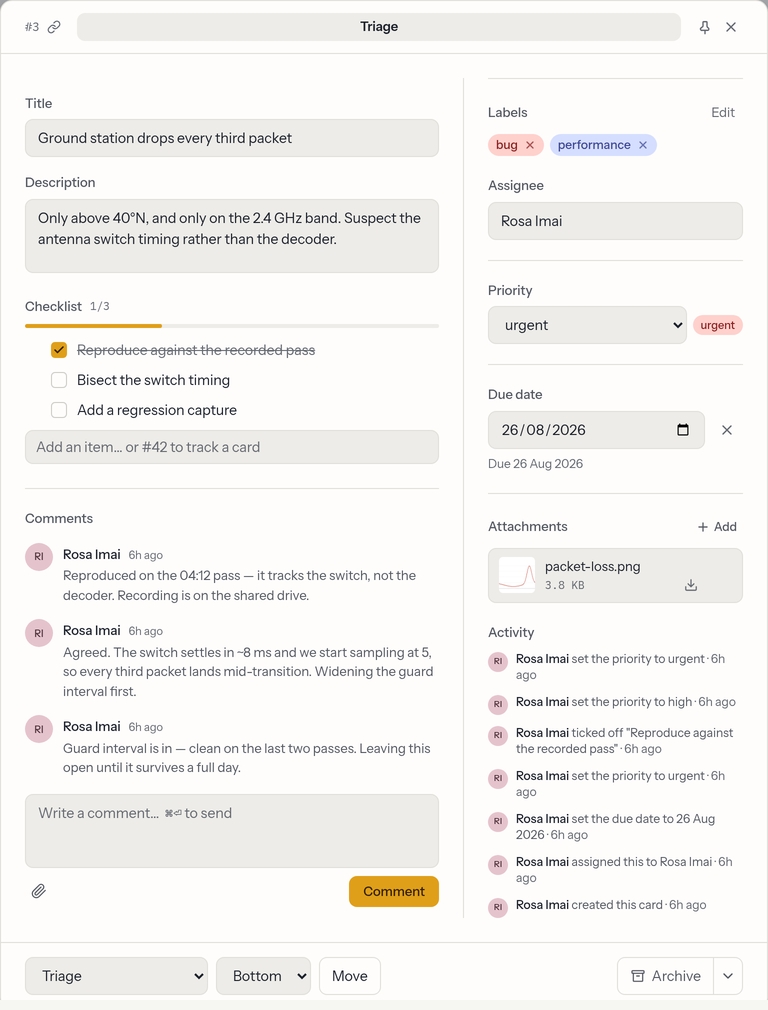
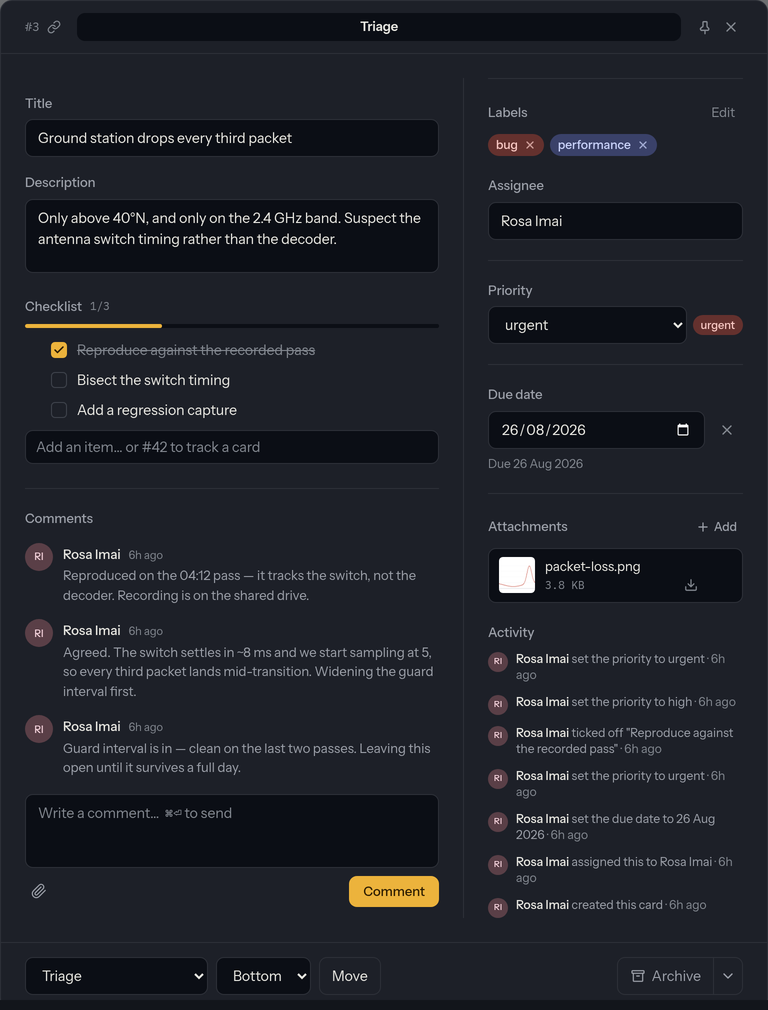
Three areas, then: the main column (title, description, checklist, findings, comments), the right rail (the metadata), and the footer (move, archive, delete).
The header shows the card's number (#12) with a copy-link button next
to it — it puts the card's direct URL on your clipboard, ready to paste
anywhere; opening it lands on the board with this card popped open.
Press Esc or click outside to close it — unless you've pinned it.
Pinning a card open


The pin next to the ✕ makes the close button the only way out: Escape and clicking outside are refused, and the pin flashes to say so rather than appearing to ignore you. Useful when you're reading a long card, or typing next to something you keep mis-clicking.
The setting is remembered per board, for you — pin one card and the next card on that board opens pinned too, while other boards and other people are unaffected. It doesn't follow you to another browser. Move, Delete, and a card being deleted by someone else all still close the dialog.
Title & description
- Title — a short name for the card.
- Description — a rich-text editor with full formatting,
@mentions, and#card links. See Writing & mentions.
Title and description save automatically when you click away — there's no separate Save button.
If someone else changed the description while you were writing, your save is held back rather than allowed to overwrite theirs. You'll get a note beside the editor with two ways out: read their version, or keep yours and save over it deliberately. Your draft is never discarded and nothing is silently lost either way. (Before this, whoever clicked away last simply won, and the other person's paragraphs vanished with nothing in the activity trail to show it.)
Assignee
In the right rail, pick a project member (or Unassigned) to show who owns the card; the choice saves the moment you make it. The assignee's initials appear on the card face, and assigning someone adds a notification to their bell.
Owner type & shepherds
Under Assignee, two more fields say whose work the card is. Both save the moment you change them.
- Owner type — Human — automation leaves it alone (the default) or Agent — claimable by the fleet. This is a routing rail, not a permission: an agent card may be claimed and scheduled by the board's workers, a human card is never picked up automatically — but anyone can still open, comment on, or finish either kind by hand. Agent cards wear an agent chip on the card face.
- Shepherds — the watchers accountable for reviewing the work, as distinct from the assignee doing it — a list now, and each entry is a member or a member label: add "developer" and whoever holds that title watches the card, staying right as the title changes hands. Add people by name, labels from the + label select; anyone with edit rights removes an entry from its pill's ×. Whoever becomes accountable at that moment — a label's current holders included — hears about it in their bell. Someone who gains the title later starts watching the card immediately but is not notified retroactively; the card is in their queue, not their bell.
Entry criteria
On a board with a gated column, the right rail also shows Entry criteria: for each gated column, what this card must satisfy to move there, with a clear to enter pill once everything is acknowledged or a count of criteria still outstanding until then. Tick a criterion's checkbox to acknowledge it (untick to withdraw); one marked "needs evidence" also wants something a second person could check — a commit sha or a link — in its Evidence — sha or link field before the acknowledgement takes. Who acknowledged what, and with which evidence, is shown under each criterion. There is no accept-all, and the server refuses the move — by drag, by Move, or through the API — until every criterion is acknowledged. Acknowledgements are retired when the card lands in an ungated column.
Labels
Labels are small coloured tags for grouping and filtering at a glance.
- Choose Edit next to Labels to open the picker.
- Apply or remove any of the project's labels.
- Create a new label inline: name it and pick one of twelve colours (gray, red, orange, amber, green, teal, cyan, blue, indigo, violet, purple, pink). New labels are available to every card in the project.
- Rename or recolour a label with the pencil next to it in the picker. The change applies everywhere the label is used, on every card.
- New projects start with a ready-made set — bug, chore, docs, enhancement, new feature, performance, refactor, security — which you can rename, recolour, or delete in Settings → Labels.
Priority
Give the card an urgency from the project's priority ladder — new projects start with urgent · high · medium · low (edit the set in Settings → Priorities). Pick a priority in the right rail (or None to clear it); the choice saves immediately and the card face shows a small flag chip in the priority's colour. Sorting a column by Priority follows the ladder's order.
Due date
Set a date to track deadlines. The card face shows a badge that turns amber when a card is due soon and red when it's overdue. Clear the field to remove the date.
Checklist
Break a card into subtasks. Add an item, check it off when it's done, or remove it. The card face shows a small progress badge (done / total) so you can see how far along a card is without opening it.
Findings
Between the checklist and the comments, Findings collects the short, durable notes an agent leaves while working the card — each tagged as an observation, decision, blocker or result, at most 280 characters, with its author. The section reads None yet. until one lands. They are written through the API or the workspace's MCP tools rather than typed into the dialog: the comment thread is for discussion, findings are for what was learned.
Attachments
Attach files to the card here — drag them onto the attachments area, or use + Add and pick how:
- Choose files… — the file picker. No type filter, so PDFs and documents are as welcome as images.
- Use my phone… — shows a QR code. See Using your phone as a camera below.
<img class="shot-light" src="/img/help/card-add-menu-light.webp" alt="The Attachments section with the Add menu open, offering "Choose files…" and "Use my phone…"."> <img class="shot-dark" src="/img/help/card-add-menu-dark.webp" alt="The Attachments section with the Add menu open, offering "Choose files…" and "Use my phone…".">
Click a file's name (or thumbnail) to preview it in place — images, PDFs, and Markdown render in a dialog; anything else downloads. The small download icon at the right of each row always downloads. See Comments & attachments.
Using your phone as a camera
Choose + Add → Use my phone… (or the same item on the comment composer's paperclip) and scan the QR code with your phone's camera:
<img class="shot-light" src="/img/help/card-capture-qr-light.webp" alt="A panel headed "Scan with your phone" containing a QR code, the note "Photos and files attach to this card as they arrive", a countdown reading "Expires in 10:00", a "Can't scan?" link and the status "Waiting for your phone…"."> <img class="shot-dark" src="/img/help/card-capture-qr-dark.webp" alt="A panel headed "Scan with your phone" containing a QR code, the note "Photos and files attach to this card as they arrive", a countdown reading "Expires in 10:00", a "Can't scan?" link and the status "Waiting for your phone…"."> Your phone opens a small page for this card only, with Take a photo and Choose a file. Everything you send appears in the card as it arrives, with the same ✓ / ✗ and reasons a desktop upload gets — no syncing photos to your computer first.
Worth knowing:
- The code lasts 10 minutes and covers up to 20 files (10 on a comment).
- Once a phone has loaded the page the QR folds away; Show QR code brings it back, and more than one phone can use the same code.
- On a card, files are saved as they arrive. On a comment, they wait for you to post it — and if you close the QR panel first, they're handed to the composer as chips rather than thrown away.
- Your phone is told when the session is over — the comment was posted, the card was closed, or a newer code was opened — and offers to close its own tab.
- The link is a temporary key in a URL. It grants one thing: uploading to this one card as you. Treat it like a password for those ten minutes, and note that your permissions are re-checked on every file, not just when the code was made.
Watching a card change while you have it open
Everything in the dialog stays current while someone else works on the same card — description, checklist, labels, assignee, priority, due date, attachments, comments, activity, and which column it's in.
Sections you're not touching simply update. When a change lands on something you are in the middle of, the dialog says so in a note under the header instead of yanking it away:
<img class="shot-light" src="/img/help/card-live-notice-light.webp" alt="A notice under the dialog header reading "Someone else changed the description.", with a Review button and a dismiss cross."> <img class="shot-dark" src="/img/help/card-live-notice-dark.webp" alt="A notice under the dialog header reading "Someone else changed the description.", with a Review button and a dismiss cross.">
- A control you had open (priority, due date, assignee, labels) takes the new value and returns to its unclicked state, with a note telling you it changed — so you can look and decide whether to set it again.
- Something holding text you wrote (the description, a checklist rename, a comment you're editing) is left completely alone. The note offers Review when you're ready.
- A move always gets a note, even if you weren't doing anything — the card quietly changing column under you would be worse than being told.
Dismiss any note with its ✕. If the card is deleted while you have it open, the dialog closes and says so rather than leaving you editing something that no longer exists.
Activity
The right rail keeps a running history of the card: when it was created, renamed, moved between columns, (un)assigned, scheduled or rescheduled, (re)prioritised, and archived or restored — each with who did it and when. Names stay current, so if someone later changes their display name, the history reflects it. Long-running cards show the 50 most recent changes.
The trail is also how you find out who did something you just watched happen: it refreshes live along with everything else (see below).
Git: commits on cards
When the board is bound to a workspace repository (see Linking a git repository), cards and commits meet in two places:
- Mention a card in a commit and the commit shows up as a comment on the
card, posted by the Repos bot. A mention is the card's number —
#12, exactly as the dialog header and the card face show it. For GitHub-connected repositories the mention can sit anywhere in the message (or a PR title/description); for self-hosted repositories put it in the first line. - Create branch (self-hosted repositories only) starts a
card/<number>-<slug>branch off the repository's default branch, right from the card dialog — needs the Member role.
Moving, archiving & deleting
- Move — the footer has a keyboard-friendly alternative to dragging: pick a destination column and Top/Bottom, then Move.
- Archive — the footer's primary action takes the card off the board while keeping everything on it. Archived cards live under the Archived link in the board header, where you can restore or purge them. Reach for this instead of Delete when you might want the card back.
- Delete card — the caret next to Archive reveals the permanent option: it removes the card and its comments and attachments for good. This can't be undone.
Editing a card (title, description, assignee, owner type, shepherds, labels, priority, due date, checklist, entry criteria, findings, attachments, move, archive, delete) needs the Member role or higher. Viewers see everything read-only.